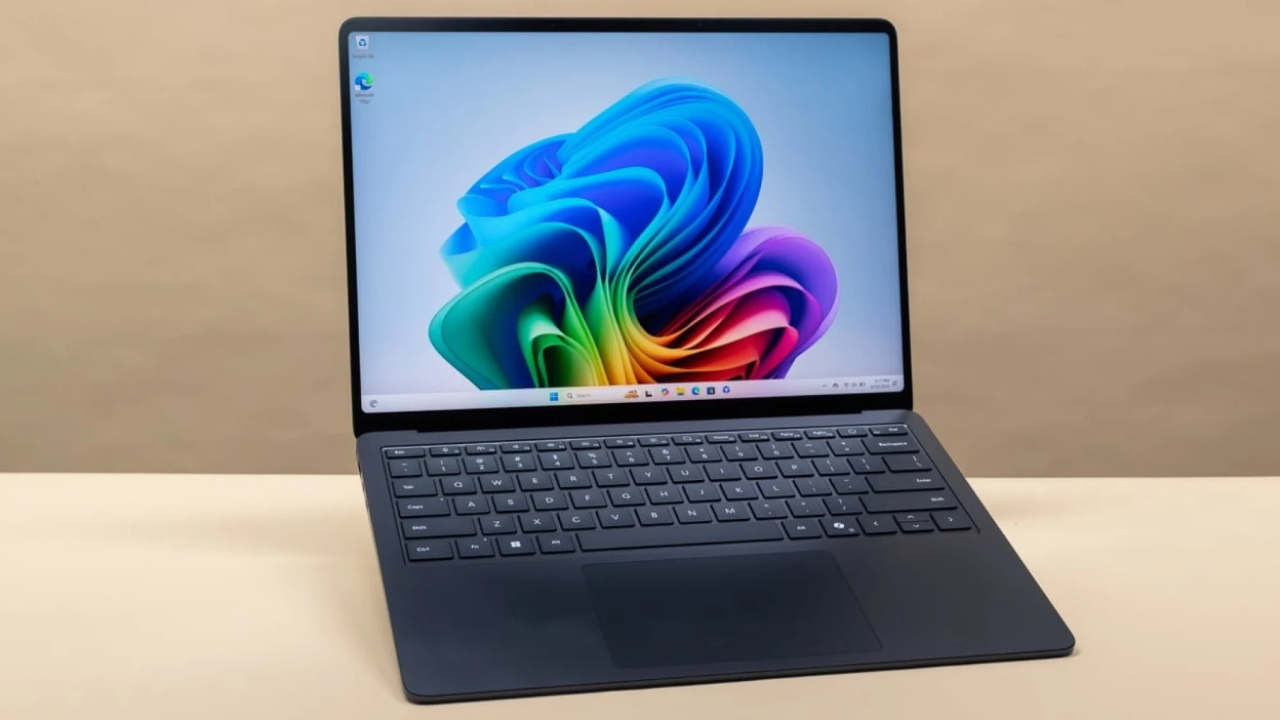
We’ve all been there. You’re in the middle of a tight deadline or an intense gaming session, and suddenly, your laptop decides to take a “nap.” The cursor turns into a spinning wheel of death, and apps take an eternity to open.
Before you start eyeing a brand-new $1,500 replacement, take a breath. Most of the time, your hardware isn’t the problem—it’s the digital “clutter” and outdated settings slowing you down.
In this guide, we’ll dive into how to make your laptop faster using 10 professional-grade strategies. Whether you are using a Windows PC or a MacBook, these steps will help you reclaim your speed.
1. Manage Your Startup Programs
One of the most common reasons for a sluggish laptop is that it’s trying to do too much the moment you turn it on. Many apps—like Spotify, Teams, or Steam—automatically set themselves to launch at startup.
- For Windows: Press
Ctrl + Shift + Escto open the Task Manager, click the “Startup” tab, and disable anything you don’t need immediately. - For Mac: Go to System Settings > General > Login Items and remove unnecessary apps.
Pro Insight: If you see “High Impact” next to a program in Windows, disabling it will give you the most noticeable speed boost.
2. Upgrade to an SSD (Solid State Drive)
If your laptop is more than four or five years old, it might still be running on a traditional Hard Disk Drive (HDD). Upgrading to an SSD is the single most effective hardware change you can make.
While an HDD uses physical spinning disks, an SSD uses flash memory. This makes a massive difference in boot times and file loading speeds.
- HDD Boot Time: 60–90 seconds.
- SSD Boot Time: 15–20 seconds.
3. Clean Out Your Web Browser
Most of our “laptop time” is spent in a browser. If Chrome or Edge feels slow, the laptop itself might be fine, but your browser is bloated.
- Limit Tabs: Each open tab consumes RAM (Random Access Memory).
- Clear Cache and Cookies: This removes temporary files that might be corrupted.
- Remove Extensions: If you haven’t used that “Coupon Finder” extension in six months, delete it.
4. Increase Your RAM
Laptop performance is heavily tied to how much RAM you have. If you frequently multitask—running Photoshop while having 20 Chrome tabs open—your system will “swap” data to the hard drive, which is much slower.
Aim for at least 16GB of RAM for a smooth experience in 2026. Most mid-range laptops allow you to pop off the back cover and click in a new RAM stick for a relatively low cost.
5. Check for Malware and Viruses
Slow performance is often a symptom of “bloatware” or malicious software running in the background. Malicious scripts can hog your CPU power to mine cryptocurrency or send data to third parties.
Note: Use built-in tools like Windows Defender or reputable third-party software like Malwarebytes to run a deep scan once a week.
6. Uninstall Unused Software
We all download “one-time use” apps and forget about them. These programs take up storage space and often run background services that drain your battery and speed.
How to optimize your laptop:
- Go to your “Add or Remove Programs” settings.
- Sort by “Size” or “Date Last Used.”
- Be ruthless. If you haven’t opened it in three months, you probably don’t need it.
7. Adjust Your Power Settings
Laptops are designed to save battery life, which often means “throttling” or slowing down the processor. If you are plugged into a wall outlet, there is no reason to be in “Battery Saver” mode.
- Windows: Click the battery icon and move the slider to “Best Performance.”
- Mac: Go to Battery settings and ensure “Low Power Mode” is turned off when plugged in.
8. Keep Your OS and Drivers Updated
Software updates aren’t just about new emojis; they include critical performance patches. Manufacturers frequently release driver updates that help your hardware (like your graphics card or Wi-Fi chip) communicate more efficiently with your operating system.
Check for updates at least once a week to ensure your system optimization is up to date.
9. Clean Your Laptop Physically
This is the most overlooked tip! Laptops generate heat. When dust clogs the cooling fans, the laptop gets hot. To prevent internal damage, the CPU will automatically slow itself down—a process called thermal throttling.
- Use a can of compressed air to blow dust out of the vents.
- Avoid using your laptop on soft surfaces like beds or pillows, which block airflow.
10. Reset Your Operating System
If you’ve tried everything and your laptop still feels like it’s stuck in mud, it’s time for a “Fresh Start.” Both Windows and macOS offer a way to reset the OS while keeping your personal files.
This wipes away years of registry errors, hidden junk files, and software conflicts, giving you that “out of the box” speed again.
Summary of Speed-Boosting Tips
| Action Item | Difficulty | Impact |
| Disable Startup Apps | Easy | Medium |
| Install an SSD | Hard | Very High |
| Clear Browser Cache | Easy | Low |
| Add More RAM | Medium | High |
| Clean Cooling Fans | Easy | Medium |
Conclusion: Key Takeaways
Learning how to make your laptop faster doesn’t require a degree in computer science. Most performance issues stem from a combination of too many background processes, lack of physical maintenance, and aging hardware components like HDDs.
To recap:
- Start with “soft” fixes like managing startup apps and clearing your browser.
- Move to “hard” fixes like adding RAM or an SSD if software tweaks aren’t enough.
- Don’t forget the physical side—keep those fans clean!
By following these 10 proven tips, you can extend the life of your device and save yourself the frustration of a lagging screen.