The year 2026 has brought us to a fascinating plateau in mobile technology. While we used to wait for massive design overhauls, today’s “wow” moments are hidden deep within the settings of our operating systems. Whether you are an iPhone devotee, a Samsung loyalist, or a fan of stock Android, your phone is likely more powerful than you realize.
Most users only scratch the surface of what their devices can do. However, tucked away beneath the menus of iOS 18, One UI 6, and Android 15 are game-changing tools that can boost your productivity, save your battery, and even protect your data from thieves.
In this guide, we reveal the best hidden features in iOS 18, One UI 6, and Android 15 you should know to truly master your smartphone this year.
iOS 18: Beyond the Surface Customization
Apple’s iOS 18 was a landmark update for personalization, but the real magic lies in the utility features that Apple didn’t spend much time on during its keynotes.
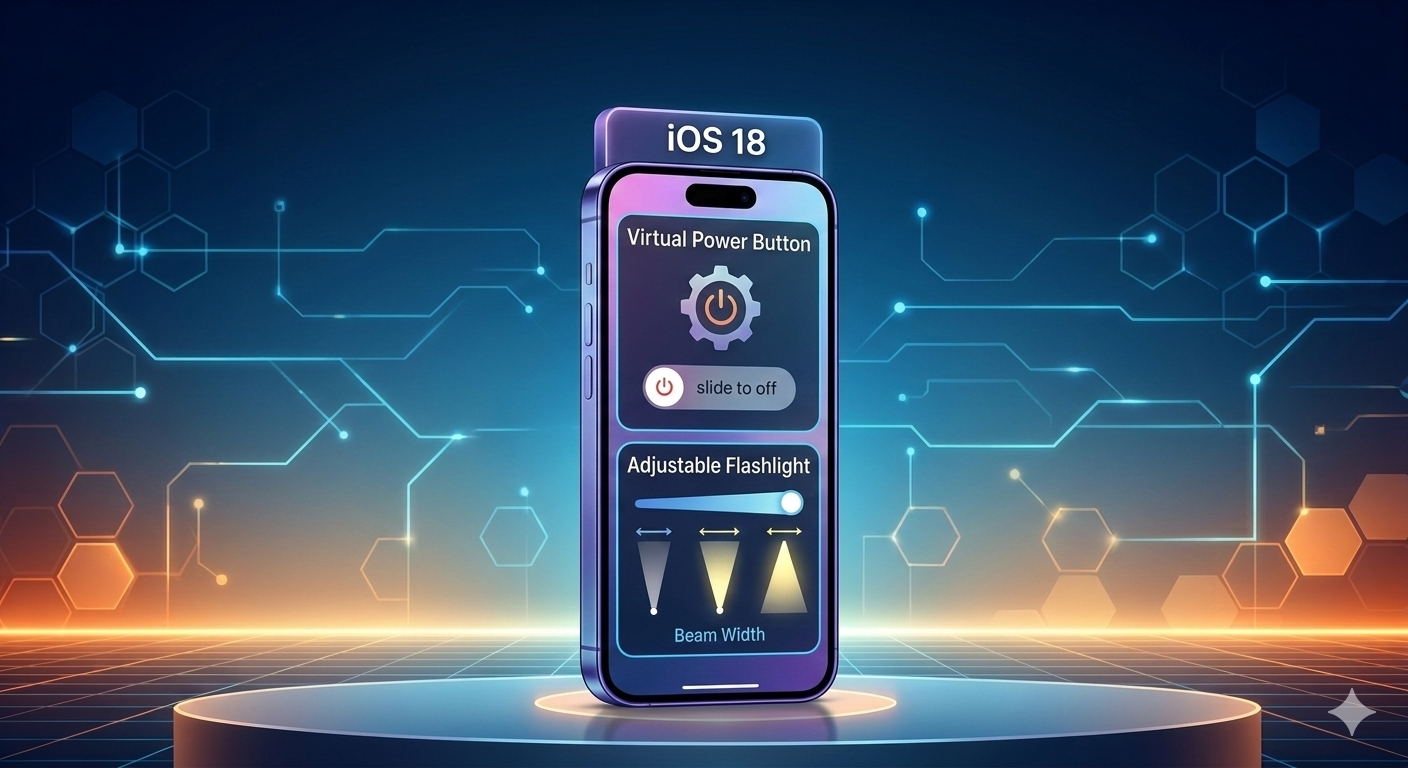
1. The Virtual Power Button
Believe it or not, you no longer need to fumble with physical buttons to turn off your iPhone. In the revamped Control Center, there is now a virtual Power Button in the top-right corner. It’s a small tweak, but for anyone with a bulky case or accessibility needs, it’s a long-overdue addition.
2. Adjustable Flashlight Beam Width
We’ve been able to change flashlight brightness for years, but iOS 18 (on compatible Pro models) allows you to adjust the width of the beam.
- How to use it: Turn on your flashlight, tap the icon in the Dynamic Island, and swipe left or right.
- Practical insight: Use a narrow beam for finding a dropped key in a dark corner, or a wide, diffuse beam for lighting up an entire room during a power outage.
3. Math Notes in Calculator
The Calculator app is no longer just for simple sums. If you switch to Math Notes, you can handwrite equations using your finger (or an Apple Pencil on iPad). The system will recognize the math and solve it in your own handwriting style. It even updates the answer in real-time if you change a variable in the equation.
One UI 6: Samsung’s Productivity Powerhouse
Samsung’s One UI 6 (and its 2026 iterations like 6.1) remains the king of customization. While many focus on the new font and emojis, power users should look for these efficiency tools.
1. Two-Handed Drag and Drop
Multitasking on a Galaxy device has never been smoother. You can now use two hands to move files.
- The Trick: Start dragging a photo or text with one hand, and use your other hand to navigate to a different app (like Messages or Notes) where you want to drop it. This completely eliminates the need for the “Copy and Paste” menu.
2. Custom Camera Widgets
If you frequently switch between “Portrait Mode” for your kids and “Pro Video” for work, you know how annoying it is to swipe through menus. One UI 6 allows you to save Custom Camera Widgets on your home screen. Each widget can be preset to a specific mode, zoom level, and save folder. One tap, and you’re exactly where you need to be.
3. Bixby Text Call Expansion
Bixby has evolved into a highly useful screening tool. If you are in a meeting and receive a call, you can use Bixby Text Call to answer. You type a response, and Bixby speaks it to the caller. In 2026, this feature is faster and more natural, allowing you to maintain a full conversation without ever making a sound.
Android 15: The Privacy and Intelligence Suite
Google’s Android 15 isn’t just about flashy visuals; it’s about making your phone a more secure, intelligent companion. Here are the hidden gems in the latest “Vanilla” Android experience.
1. Private Space
Think of Private Space as a digital safe within your phone. It allows you to create a separate, hidden area for sensitive apps (like banking or dating apps). When locked, these apps are completely invisible from your main app drawer, notifications, and even your settings. They only reappear when you authenticate with a separate PIN or fingerprint.
2. Theft Detection Lock
This is perhaps the most impressive AI feature of 2026. Using the phone’s sensors and machine learning, Android 15 can detect the specific “snatch-and-run” motion typical of phone thieves. If someone grabs your phone and starts running or biking away, the device will instantly lock the screen, preventing the thief from accessing your data.
3. Notification Cooldown
Do you have a friend who sends ten separate messages instead of one long paragraph? Notification Cooldown is your savior. It automatically lowers the volume of successive notifications from the same app. You’ll hear the first one at full volume, but the rest will be subtle “pips” so your phone doesn’t scream at you all afternoon.
Comparison: Which OS Has the Best “Secrets”?
| Feature Category | iOS 18 | One UI 6 | Android 15 |
| Best For | Creative Utility | Extreme Productivity | Privacy & Security |
| Standout Hack | Math Notes | Two-Handed Drag | Private Space |
| Security Win | Stolen Device Protection | Auto Blocker | Theft Detection Lock |
Practical Examples: How to Use These Today
To get the most out of your 2026 smartphone, try these three workflows:
- For Students: Use iOS 18 Math Notes to solve physics problems as you write them down. It’s like having a tutor built into your calculator.
- For Content Creators: Place a Samsung Camera Widget directly on your home screen labeled “Vlog Mode” to jump straight into 4K/60fps recording with one touch.
- For Travelers: Enable Android 15’s Hiding Device Name in Wi-Fi settings. This keeps your phone anonymous when connecting to public airport or cafe networks, preventing hackers from identifying your device.
Conclusion: Key Takeaways
The best hidden features in iOS 18, One UI 6, and Android 15 you should know are designed to make your life easier and your data safer.
- Apple is focusing on making the small interactions (like the flashlight and calculator) more powerful and tactile.
- Samsung continues to lead in “Pro” workflows, making multitasking feel like a desktop experience.
- Google is using AI to solve real-world problems like theft and notification fatigue.
The best way to find your own favorite feature is to dive into the “Advanced Features” or “Accessibility” menus of your phone. You’ll be surprised at how much tech is waiting to be discovered.